Sometimes you plan for expansion, other times it is thrust upon you.
The other day my primary workstation just died. Here is what it was:
- Intel Q6600
- 8GB RAM
- Radeon RX 570
- 5 drives, total of ~8 TB of data
Not knowing if the problem was the motherboard, processor, or power supply, decided to junk it, pull the drives and video card and go with a new machine.
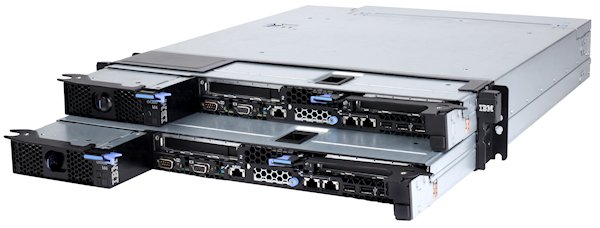
Now I normally build my workstations, I enjoy it, but since I was caught with a loss of functionality, I wanted to get back up and running quickly I decided to repurpose one of my ESXi Servers, an IBM DX360 M4. Here is the info about it from Lenovo:
The machine is built with the following:
- E5-2650 (2)
- 32GB of memory
It is it a little overkill, probably, but it is what I have, and there are a couple of advantages:
- When idle, only uses about 100W
- When idle, the fan speed, and noise is relatively low.
- It has 32 cores with Hyperthreading
- It has 32GB, and there are 12 more RAM slots available
- It can handle 250W video cards, so my RX570 will be child's play for it
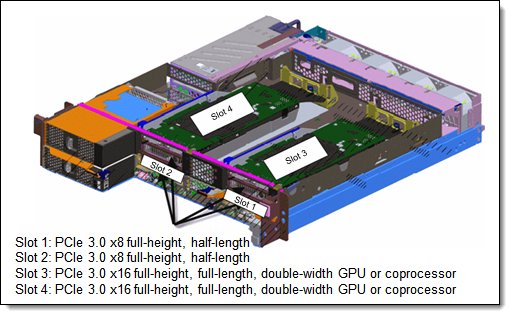
- With the GPU Tray, I get 2 x16 PCIe slots, for a total of 4 PCIe slots. Also I get the option of adding a 2nd HDD / SSD into the system.
But it has a couple of disadvantages:
- Only has two Drive bays.
- Doesn't have USB3.0
- No sound
- Very difficult to find a power cable for PCI-e video card!!
To get it running it needed a couple of things:
After about a week, I am pretty happy with this computer. Pretty quiet, great on productivity, and even without the RX570 installed, works OK with games.
Normally use Shadow.tech for gaming, but once RX570 is up and running, might cancel this service.
Interesting things that I learned
I use a VPN from time to time. Before when downloading, I wold get from 8.5 to 9.8 MB/s down. Now I get 10.00 down. That is because on my MOCA adapter, it has a 100mbit port and OpenVPN is not multi-threaded, so I am saturating the port, and almost a whole core to do VPN traffic.
There are USB 3.0 cards out there that don't need a SATA / MOLEX connector in order to work like this from Inateck or LTERIVER. This is important with a server that doesn't have additional power ports available inside of the device. I am considering an external JBOD chassis from SYBA for adding more drives to the system.
Using Server hardware as Primary Workstation
Sometimes you plan for expansion, other times it is thrust upon you.
The other day my primary workstation just died. Here is what it was:
- Intel Q6600
- 8GB RAM
- Radeon RX 570
- 5 drives, total of ~8 TB of data
Not knowing if the problem was the motherboard, processor, or power supply, decided to junk it, pull the drives and video card and go with a new machine.
Now I normally build my workstations, I enjoy it, but since I was caught with a loss of functionality, I wanted to get back up and running quickly I decided to repurpose one of my ESXi Servers, an IBM DX360 M4. Here is the info about it from Lenovo:
The machine is built with the following:
- E5-2650 (2)
- 32GB of memory
It is it a little overkill, probably, but it is what I have, and there are a couple of advantages:
- When idle, only uses about 100W
- When idle, the fan speed, and noise is relatively low.
- It has 32 cores with Hyperthreading
- It has 32GB, and there are 12 more RAM slots available
- It can handle 250W video cards, so my RX570 will be child's play for it
- With the GPU Tray, I get 2 x16 PCIe slots, for a total of 4 PCIe slots. Also I get the option of adding a 2nd HDD / SSD into the system.
But it has a couple of disadvantages:
- Only has two Drive bays.
- Doesn't have USB3.0
- No sound
- Very difficult to find a power cable for PCI-e video card!!
To get it running it needed a couple of things:
After about a week, I am pretty happy with this computer. Pretty quiet, great on productivity, and even without the RX570 installed, works OK with games.
Normally use Shadow.tech for gaming, but once RX570 is up and running, might cancel this service.
Interesting things that I learned
I use a VPN from time to time. Before when downloading, I wold get from 8.5 to 9.8 MB/s down. Now I get 10.00 down. That is because on my MOCA adapter, it has a 100mbit port and OpenVPN is not multi-threaded, so I am saturating the port, and almost a whole core to do VPN traffic.
There are USB 3.0 cards out there that don't need a SATA / MOLEX connector in order to work like this from Inateck or LTERIVER. This is important with a server that doesn't have additional power ports available inside of the device. I am considering an external JBOD chassis from SYBA for adding more drives to the system.
Updated: 2020.02.26
This is a living review of Crashplan for Small Business 7. Please refer back to it frequently because the plan is to continuously review it and update the community that either rely on or are considering CrashPlan after its directional change to only supply the Small Business and Enterprise versions
On Feb 20, adding my notes and updates with the 7.7.0 Build 883 update, all differences will be noted with
(7.7.0-new)
Previous History:
- Was very familiar with and used extensively the 4.x version for home for all my backups. It contained over 10 personal workstation and servers in my household running multiple versions of Windows and Linux
- Infrastructure configuration contained 1 "server" that housed backups of all my other machines. CrashPlan Home had the very powerful ability where it could store backups in the Cloud, which were CrashPlan's servers, and also had the ability to send backups to another machine in your account. Essentially you could designate a device of your own choosing to collect all the backups of other devices.
- Completely destroyed my 4.x infrastructure once it was announced that the Home product was being discontinued, and used other methods for backup; did not wait for the EOL date or conversion to CrashPlan Pro reduced rate.
I really liked CrashPlan Home Version. It was powerful. It had the ability to backup whatever I wanted to the cloud and also the ability to send backups to another device attached to your account. I had over 10 machines sending backups to 1 device, and that became my "server". Yes it was a peer to peer infrastructure, but it had a lot of advantages. It was fast, it encrypted all my data, and it was resilient, the software just worked and everything I need was backed up in one location. Restores were fast and it did save me from times when I needed to recover data.
I have accepted that the new product that Code42 has given us is different. From my 60 days evaluating it I have noticed the following things:
- The client is less powerful than the previous Home version; all peer to peer functions have been stripped out.
- The client is slower, both on communication to Code42's servers over the internet, to local drives, and remote drives within my own network. The program throughput is less than what my disk and network subsystems can provide, so I have to conclude either the code is throttled, or less efficient.
- With the loss of the Peer-to-peer functionality, The client does not like working with network connectivity.
- Mapping network drives does not work
- iSCSI does work, so a remote location to backup is possible, but still slow **This has been improved with optimizations, please continue to read**.
I wanted to love the new CrashPlan for Business. After 20 days of usage, can only sort of like it. After 60 days of usage, it is not bad and I can learn to live with its directions
- (NEG) Despite the hard coded file exclusions, it backups up a lot of data. Personally I miss that I cannot backup virtual disk files like .vdi or .vmdk, but knowing that I can take alternative measures to back it up
- (NEG-20 Days) The slowness is annoying especially when copying to a local location to the client, but once your dataset is built, keeping is up to date is a painless process
- (NEG-60 Days) Local and remote backups are are capped at the ~7 Mbs bandwidth, not great, but I am OK with it as long as It keeps working at that rate. This means it will take a week to backup 1TB, but after the initial backup, keeping my date up to date will be simple
- (POS)It defaults to backup continuously, so once your data is backed up, keeping it up to date is a automatic process
- (POS) Really, really like using iSCSI as a local destination for my clients. Very versatile and resilient. If my iSCSI disk is offline, local backups are not available, once it becomes available, Crashplan starts right up and backs up, no reboot of client, no restart of service.
- (POS) $10/month for unlimited backup of client to cloud is cheap and really easy to plan for. Don't have to worry about cost of upload / download transfer and storage costs
- (POS) (7.7.0-new) I started up the Crashplan client after a 7 days and it did a deep pruning, and backed up 30GB to my online and onsite repository in under 7 hours, that feels like an improvement. Trying to look for evidence in logs
The Great workaround
OK, so the new CrashPlan for small business is not perfect, but I have developed a workaround that will work and it pretty clean. I want a solution where my data is backed up in 2 locations; first in the cloud and second on-site that is not on the same machine where my data is. This is my workaround.
- Setup an iSCSI target to hold all of your local data. I can be Windows, Linux or BSD. I am using StarWind Software Virtual San because Windows because my primary OS that I am familiar with was only doing 2 nodes and it was proof of concept
- Create a LUN for each machine you want to backup and set up for each client. My test Laptop has a 20 GB LUN, and my test desktop has a 1.05 GB LUN
- Provide each client you wish to backup a new drive letter, in my case with Windows clients, it was the R: Drive
- Configure Crashplan for one backup set to the cloud, and another backup set the R: drive for local backups.
- Use script robocopy and copy over all the standard excluded files in CrashPlan files like *.vdi, *.vmdk. They wont be backed up into the cloud but at least you will have a second copy of them.
- If you don't want to use CrashPlan for your local backup, robocopy everything over to the R: drive
Here is my robocopy script, I needed to add the attrib command because there is a bug where robocopy will sometimes hide the destination directory:
robocopy g:\ R:\backup_robocopy_G *.vdi *.vfd *.vhd *.vmdk *.vmem *.vmsd *.vmx *.vmxf /S /PURGE /XD $RECYCLE.BIN OneDriveTemp Recoverybin /A-:SH
attrib -s -h R:\backup_robocopy_G
I think this is a decent workaround. I know if you don't decide to use CrashPlan for you local backups, then setting up an iSCSI target might be overkill, but if it is used for some, then the process is consistent and with iSCSI, you don't need to map network drives, it just attaches as long as the client and server are up.
UPDATE: 2019.10.24 After doing tweaks and overcoming my stall, which I documented below, it has been smooth sailing.
Feel free to comment here or on
reddit
Tweaks for Better Perfomance
I am researching what will improve performance to speed up backups, here is my attempts and how they behaved.

- Increase CPU usage on Idle / Active from 80 / 20 to 100 / 100. After changing this setting I was seeing higher CPU usage but no where total CPU usage. I have suspected and a Crashplan technician confirmed that the engine is not multi threaded, so with a 2 core system, will max CPU Usage at 50%, 4 cores, 25%
- Exclude the backup directory (R:\backup_Crashplan) and the Crashplan cache (C:\Programdata\crashplan\cache) from Microsoft Defender or any other virus scanners. There is no need to scan the CrashPlan files, let Microsoft Defender focus on the source files.
- Exclude large files that are already highly compressed like .mkv, .pst, .rar, .ress (Data files from the game Tacoma), and .zip by modifying the file C:\ProgramData\CrashPlan\conf\my.service.xml. Here is my exemptions:
- (7.7.0-new) The file my.service.xml is now gone, and I cannot find any xml file that would offer any control. I do know that my exemptions are still in place because I can see evidence of it in the following files:
- C:\ProgramData\CrashPlan\log\service.log.0
- C:\ProgramData\CrashPlan\log\app.log
For local backups from my client to a remote drive via iSCSI, I sometimes get 35 Mbps for highly compressible data, but for mostly compressed data I get 6 to 7 Mbps. Cloud backups I normally see from 5 to 7 Mbps. I see no improvement on backups to crashplan.com so something on their side or how the engine is programmed that is slowing things down.
Watching for Stalls and Rectify - 2019.10.23
In my instance, local backup were just stopped at 29% for days and would not go anywhere. I could see that the engine was running, but nothing was backing up and nothing was being written to the log file C:\ProgramData\CrashPlan\log\backup_files.log.0 that was useful
Using Resource Monitor I could see it was spending a lot of time reading the file sharedassets3.assets.ress in a directory for the game Tacoma. It was a 2GB file and it never backed up, but it was always working with that file.
I surmised that CrashPlan was trying to compress this file and was having difficulty. Once I exempted the extension of .ress, it was moved right into the destination without incident.
Turned a corner and not looking back - 2019.11.06
Since the 23rd, CrashPlan has been continuing to do a local backup and just before the start of the month it finished, I now have my 1TB of crucial data backed up on the CrashPlan servers, and on a local iSCSI disk. And I have to say it is pretty good. With average usage, I generate 7 to 15 GB of new data or overwrite of previous data, and the the system can handle it without breaking a sweat.
I have done test restores from remote and local data, and the process has been clean, my data is backed up and able to be recovered if the need arrises. Granted I only backup 2 machines, and the second will be decommissioned soon because it was always a Proof of Concept, but while the behavior of Crashplan, is different, I consider this tool much more of an asset than a liability for me to use.
Latest update - 2021.03.01
CrashPlan has done some updates, like moving to version 8.5.0, and now they are Code42, but it has still performed reliably for me. Earlier this year I needed to cutover to a new computer, and the migration was painless, and I am still protected. Yes it is limited to uploads of 700 KB/s but with only 1.6 TB of data, it works tirelessly to keep a copy of my data safe. For me the possibility change my cost for $10/month to $6/month is not worth the hassle at this time.
Review of Crashplan 7 on Windows
Updated: 2020.02.26
This is a living review of Crashplan for Small Business 7. Please refer back to it frequently because the plan is to continuously review it and update the community that either rely on or are considering CrashPlan after its directional change to only supply the Small Business and Enterprise versions
On Feb 20, adding my notes and updates with the 7.7.0 Build 883 update, all differences will be noted with
(7.7.0-new)
Previous History:
- Was very familiar with and used extensively the 4.x version for home for all my backups. It contained over 10 personal workstation and servers in my household running multiple versions of Windows and Linux
- Infrastructure configuration contained 1 "server" that housed backups of all my other machines. CrashPlan Home had the very powerful ability where it could store backups in the Cloud, which were CrashPlan's servers, and also had the ability to send backups to another machine in your account. Essentially you could designate a device of your own choosing to collect all the backups of other devices.
- Completely destroyed my 4.x infrastructure once it was announced that the Home product was being discontinued, and used other methods for backup; did not wait for the EOL date or conversion to CrashPlan Pro reduced rate.
I really liked CrashPlan Home Version. It was powerful. It had the ability to backup whatever I wanted to the cloud and also the ability to send backups to another device attached to your account. I had over 10 machines sending backups to 1 device, and that became my "server". Yes it was a peer to peer infrastructure, but it had a lot of advantages. It was fast, it encrypted all my data, and it was resilient, the software just worked and everything I need was backed up in one location. Restores were fast and it did save me from times when I needed to recover data.
I have accepted that the new product that Code42 has given us is different. From my 60 days evaluating it I have noticed the following things:
- The client is less powerful than the previous Home version; all peer to peer functions have been stripped out.
- The client is slower, both on communication to Code42's servers over the internet, to local drives, and remote drives within my own network. The program throughput is less than what my disk and network subsystems can provide, so I have to conclude either the code is throttled, or less efficient.
- With the loss of the Peer-to-peer functionality, The client does not like working with network connectivity.
- Mapping network drives does not work
- iSCSI does work, so a remote location to backup is possible, but still slow **This has been improved with optimizations, please continue to read**.
I wanted to love the new CrashPlan for Business. After 20 days of usage, can only sort of like it. After 60 days of usage, it is not bad and I can learn to live with its directions
- (NEG) Despite the hard coded file exclusions, it backups up a lot of data. Personally I miss that I cannot backup virtual disk files like .vdi or .vmdk, but knowing that I can take alternative measures to back it up
- (NEG-20 Days) The slowness is annoying especially when copying to a local location to the client, but once your dataset is built, keeping is up to date is a painless process
- (NEG-60 Days) Local and remote backups are are capped at the ~7 Mbs bandwidth, not great, but I am OK with it as long as It keeps working at that rate. This means it will take a week to backup 1TB, but after the initial backup, keeping my date up to date will be simple
- (POS)It defaults to backup continuously, so once your data is backed up, keeping it up to date is a automatic process
- (POS) Really, really like using iSCSI as a local destination for my clients. Very versatile and resilient. If my iSCSI disk is offline, local backups are not available, once it becomes available, Crashplan starts right up and backs up, no reboot of client, no restart of service.
- (POS) $10/month for unlimited backup of client to cloud is cheap and really easy to plan for. Don't have to worry about cost of upload / download transfer and storage costs
- (POS) (7.7.0-new) I started up the Crashplan client after a 7 days and it did a deep pruning, and backed up 30GB to my online and onsite repository in under 7 hours, that feels like an improvement. Trying to look for evidence in logs
The Great workaround
OK, so the new CrashPlan for small business is not perfect, but I have developed a workaround that will work and it pretty clean. I want a solution where my data is backed up in 2 locations; first in the cloud and second on-site that is not on the same machine where my data is. This is my workaround.
- Setup an iSCSI target to hold all of your local data. I can be Windows, Linux or BSD. I am using StarWind Software Virtual San because Windows because my primary OS that I am familiar with was only doing 2 nodes and it was proof of concept
- Create a LUN for each machine you want to backup and set up for each client. My test Laptop has a 20 GB LUN, and my test desktop has a 1.05 GB LUN
- Provide each client you wish to backup a new drive letter, in my case with Windows clients, it was the R: Drive
- Configure Crashplan for one backup set to the cloud, and another backup set the R: drive for local backups.
- Use script robocopy and copy over all the standard excluded files in CrashPlan files like *.vdi, *.vmdk. They wont be backed up into the cloud but at least you will have a second copy of them.
- If you don't want to use CrashPlan for your local backup, robocopy everything over to the R: drive
Here is my robocopy script, I needed to add the attrib command because there is a bug where robocopy will sometimes hide the destination directory:
robocopy g:\ R:\backup_robocopy_G *.vdi *.vfd *.vhd *.vmdk *.vmem *.vmsd *.vmx *.vmxf /S /PURGE /XD $RECYCLE.BIN OneDriveTemp Recoverybin /A-:SH
attrib -s -h R:\backup_robocopy_G
I think this is a decent workaround. I know if you don't decide to use CrashPlan for you local backups, then setting up an iSCSI target might be overkill, but if it is used for some, then the process is consistent and with iSCSI, you don't need to map network drives, it just attaches as long as the client and server are up.
UPDATE: 2019.10.24 After doing tweaks and overcoming my stall, which I documented below, it has been smooth sailing.
Feel free to comment here or on
reddit
Tweaks for Better Perfomance
I am researching what will improve performance to speed up backups, here is my attempts and how they behaved.
- Increase CPU usage on Idle / Active from 80 / 20 to 100 / 100. After changing this setting I was seeing higher CPU usage but no where total CPU usage. I have suspected and a Crashplan technician confirmed that the engine is not multi threaded, so with a 2 core system, will max CPU Usage at 50%, 4 cores, 25%
- Exclude the backup directory (R:\backup_Crashplan) and the Crashplan cache (C:\Programdata\crashplan\cache) from Microsoft Defender or any other virus scanners. There is no need to scan the CrashPlan files, let Microsoft Defender focus on the source files.
- Exclude large files that are already highly compressed like .mkv, .pst, .rar, .ress (Data files from the game Tacoma), and .zip by modifying the file C:\ProgramData\CrashPlan\conf\my.service.xml. Here is my exemptions:
- (7.7.0-new) The file my.service.xml is now gone, and I cannot find any xml file that would offer any control. I do know that my exemptions are still in place because I can see evidence of it in the following files:
- C:\ProgramData\CrashPlan\log\service.log.0
- C:\ProgramData\CrashPlan\log\app.log
For local backups from my client to a remote drive via iSCSI, I sometimes get 35 Mbps for highly compressible data, but for mostly compressed data I get 6 to 7 Mbps. Cloud backups I normally see from 5 to 7 Mbps. I see no improvement on backups to crashplan.com so something on their side or how the engine is programmed that is slowing things down.
Watching for Stalls and Rectify - 2019.10.23
In my instance, local backup were just stopped at 29% for days and would not go anywhere. I could see that the engine was running, but nothing was backing up and nothing was being written to the log file C:\ProgramData\CrashPlan\log\backup_files.log.0 that was useful
Using Resource Monitor I could see it was spending a lot of time reading the file sharedassets3.assets.ress in a directory for the game Tacoma. It was a 2GB file and it never backed up, but it was always working with that file.
I surmised that CrashPlan was trying to compress this file and was having difficulty. Once I exempted the extension of .ress, it was moved right into the destination without incident.
Turned a corner and not looking back - 2019.11.06
Since the 23rd, CrashPlan has been continuing to do a local backup and just before the start of the month it finished, I now have my 1TB of crucial data backed up on the CrashPlan servers, and on a local iSCSI disk. And I have to say it is pretty good. With average usage, I generate 7 to 15 GB of new data or overwrite of previous data, and the the system can handle it without breaking a sweat.
I have done test restores from remote and local data, and the process has been clean, my data is backed up and able to be recovered if the need arrises. Granted I only backup 2 machines, and the second will be decommissioned soon because it was always a Proof of Concept, but while the behavior of Crashplan, is different, I consider this tool much more of an asset than a liability for me to use.
Latest update - 2021.03.01
CrashPlan has done some updates, like moving to version 8.5.0, and now they are Code42, but it has still performed reliably for me. Earlier this year I needed to cutover to a new computer, and the migration was painless, and I am still protected. Yes it is limited to uploads of 700 KB/s but with only 1.6 TB of data, it works tirelessly to keep a copy of my data safe. For me the possibility change my cost for $10/month to $6/month is not worth the hassle at this time.
With the little help of the internet, a little trial and error, and previous knowledge, I was able to get pfSense setup to use the VPN service provided by EasyNews. This was done for the following reasons.
- Price is good for the VPN servers about $12 and it gets you access to NNTP servers
- Logging in not kept and many VPN endpoints
- Already have it and why not use what already paying for
- No one has a tutorial on how to setup pfSense with EasyNews VPN, so good to be the first
Please note that these directions were originally built for pfSense
2.2.5-6, but then finished on pfSense 2.3.1. While the directions are
almost the same, did not see the need or had the time to redo the
pictures that were in the 2.2.x format.
Creating an Internal CA
Creating a local certificate from the Internal CA
Create the CA Certificate
- Select menu item: System->Cert Manager
- Select CAs tab
- Click Plus symbol to add CA Certificate
- Configure as follows:
- Descriptive Name = EasynewsVPN
- Method = Import an existing Certificate Authority (Location of certificate is here)
--BEGIN CERTIFICATE--
--END CERTIFICATE--
- Certificate Private Key = Leave Blank
- Serial for Next Certificate = Leave Blank
- Click Save
[
ref1],[
ref2]
Create OpenVPN Client
- Select menu: VPN->OpenVPN
- Select Client tab
- Click Plus symbol to add client
- Configure as Follows:
- Disabled = unchecked
- Server Mode = Peer To Peer (SSL/TLS)
- Protocol = UDP
- Device Mode = TUN
- Interface = WAN
- Server Host Address = nyc-a01.wlvpn.com (or other server address from EasyNews. full list is here)
- Server Port = 1194 or 443
- Proxy Host or address = (Leave Blank)
- Proxy Port = (Leave Blank)
- Proxy Authentication Extra Options = none
- Server host name resolution = Checked
- Description = easynewsVPN (or whatever you want)
- Username = username@easynews
- Password = (Your password for easynews)
- TLS Authentication = Unchecked
- Peer Certificate Authority = easynewsVPN
- Client Certificate = None
- Encryption Algorithm = AES-256-CBC (256-bit)
- Auth Digest Algorithm = SHA1 (160 bit)
- Hardware Crypto = No Hardware Crypto Acceleration
- IPv4 Tunnel Network = (leave blank)
- IPv6 Tunnel Network = (leave blank)
- IPv4 Remote Network/s = (leave blank)
- IPv6 Remote Network/s = (leave blank)
- Limit outgoing bandwidth = (leave blank)
- Compression = No Preference
- Type of Service = Unchecked
- Disable IPv6 = Checked
- Don't Pull routes = Unchecked
- Don't add/remove routes = Unchecked
- Advanced remote-cert-tls server
resolv-retry infinite
persist-key
persist-tun
persist-remote-ip
comp-lzo
verb 3
auth SHA256
keysize 256
tls-cipher DHE-RSA-AES256-SHA
auth-nocache
- Click Save


[
ref1],[
ref2]
Updates of custom settings from other implementations
Other documents detailed of the advanced settings as thus:
remote-cert-tls server
resolv-retry infinite
persist-key
persist-tun
persist-remote-ip
comp-lzo
verb 3
auth SHA256
keysize 256
tls-cipher DHE-RSA-AES256-SHA
but my configuration is as this:
remote-cert-tls server
resolv-retry infinite
persist-key
persist-tun
persist-remote-ip
comp-lzo
verb 3
auth SHA256
keysize 256
tls-cipher TLS-DHE-RSA-WITH-AES-256-CBC-SHA
auth-nocache
I changed the tls-cypher because when opening connection, the logs said that DHE-RSA-AES256-SHA was depreciated and TLS-DHE-RSA-WITH-AES-256-CBC-SHA should be used.
Also there was a warning that credentials were cached and adding auth-nocache would be more secure. Since the connection still worked with these extra settings, I left them in place
Create new Interface for OpenVPN
- Go to [Interfaces -> Assign]
- Under {Interface Assignments} there will be "Available Network Ports", drop down to ovpnc1() and click ADD, the Network interface OPT1 will be created
- Click on the OPT1 interface to edit it.
- Configure as follow:
- Description: ENVPN
- IPv4 Configuration Type: None
- IPv6 Configuration Type: None
- MAC Controls: Leave blank
- MTU: Leave Blank
- MSS: Leave Blank
- Block Private Network: Unchecked
- Block Bogon Network: Unchecked
- Save this configuration
Configure NAT Rules
- Go to [Firewall -> NAT]
- Go to {Outbound}
- Change from "Automatic outbound NAT rule generation. (IPsec passthrough included)" to "Manual Outbound NAT rule generation. (AON - Advanced Outbound NAT)"
References:
https://www.privateinternetaccess.com/pages/client-support/pfsense
http://www.giganews.com/support/vyprvpn/vpn-setup/dd-wrt/openvpn.html
https://forum.pfsense.org/index.php?topic=35292.0
https://www.easynews.com/vpn/setup.html#ubuntu
https://www.easynews.com/vpn/setup.html#routers
https://support.code42.com/CrashPlan/4/Configuring/Excluding_Networks_Used_For_Backup_And_Restore
https://www.reddit.com/r/OpenVPN/comments/3tmfjz/showing_connected_to_vpn_but_still_getting_actual/
pfSense router and EasyNews VPN
With the little help of the internet, a little trial and error, and previous knowledge, I was able to get pfSense setup to use the VPN service provided by EasyNews. This was done for the following reasons.
- Price is good for the VPN servers about $12 and it gets you access to NNTP servers
- Logging in not kept and many VPN endpoints
- Already have it and why not use what already paying for
- No one has a tutorial on how to setup pfSense with EasyNews VPN, so good to be the first
Please note that these directions were originally built for pfSense
2.2.5-6, but then finished on pfSense 2.3.1. While the directions are
almost the same, did not see the need or had the time to redo the
pictures that were in the 2.2.x format.
Creating an Internal CA
Creating a local certificate from the Internal CA
Create the CA Certificate
- Select menu item: System->Cert Manager
- Select CAs tab
- Click Plus symbol to add CA Certificate
- Configure as follows:
- Descriptive Name = EasynewsVPN
- Method = Import an existing Certificate Authority (Location of certificate is here)
--BEGIN CERTIFICATE--
--END CERTIFICATE--
- Certificate Private Key = Leave Blank
- Serial for Next Certificate = Leave Blank
- Click Save
[
ref1],[
ref2]
Create OpenVPN Client
- Select menu: VPN->OpenVPN
- Select Client tab
- Click Plus symbol to add client
- Configure as Follows:
- Disabled = unchecked
- Server Mode = Peer To Peer (SSL/TLS)
- Protocol = UDP
- Device Mode = TUN
- Interface = WAN
- Server Host Address = nyc-a01.wlvpn.com (or other server address from EasyNews. full list is here)
- Server Port = 1194 or 443
- Proxy Host or address = (Leave Blank)
- Proxy Port = (Leave Blank)
- Proxy Authentication Extra Options = none
- Server host name resolution = Checked
- Description = easynewsVPN (or whatever you want)
- Username = username@easynews
- Password = (Your password for easynews)
- TLS Authentication = Unchecked
- Peer Certificate Authority = easynewsVPN
- Client Certificate = None
- Encryption Algorithm = AES-256-CBC (256-bit)
- Auth Digest Algorithm = SHA1 (160 bit)
- Hardware Crypto = No Hardware Crypto Acceleration
- IPv4 Tunnel Network = (leave blank)
- IPv6 Tunnel Network = (leave blank)
- IPv4 Remote Network/s = (leave blank)
- IPv6 Remote Network/s = (leave blank)
- Limit outgoing bandwidth = (leave blank)
- Compression = No Preference
- Type of Service = Unchecked
- Disable IPv6 = Checked
- Don't Pull routes = Unchecked
- Don't add/remove routes = Unchecked
- Advanced remote-cert-tls server
resolv-retry infinite
persist-key
persist-tun
persist-remote-ip
comp-lzo
verb 3
auth SHA256
keysize 256
tls-cipher DHE-RSA-AES256-SHA
auth-nocache
- Click Save
[
ref1],[
ref2]
Updates of custom settings from other implementations
Other documents detailed of the advanced settings as thus:
remote-cert-tls server
resolv-retry infinite
persist-key
persist-tun
persist-remote-ip
comp-lzo
verb 3
auth SHA256
keysize 256
tls-cipher DHE-RSA-AES256-SHA
but my configuration is as this:
remote-cert-tls server
resolv-retry infinite
persist-key
persist-tun
persist-remote-ip
comp-lzo
verb 3
auth SHA256
keysize 256
tls-cipher TLS-DHE-RSA-WITH-AES-256-CBC-SHA
auth-nocache
I changed the tls-cypher because when opening connection, the logs said that DHE-RSA-AES256-SHA was depreciated and TLS-DHE-RSA-WITH-AES-256-CBC-SHA should be used.
Also there was a warning that credentials were cached and adding auth-nocache would be more secure. Since the connection still worked with these extra settings, I left them in place
Create new Interface for OpenVPN
- Go to [Interfaces -> Assign]
- Under {Interface Assignments} there will be "Available Network Ports", drop down to ovpnc1() and click ADD, the Network interface OPT1 will be created
- Click on the OPT1 interface to edit it.
- Configure as follow:
- Description: ENVPN
- IPv4 Configuration Type: None
- IPv6 Configuration Type: None
- MAC Controls: Leave blank
- MTU: Leave Blank
- MSS: Leave Blank
- Block Private Network: Unchecked
- Block Bogon Network: Unchecked
- Save this configuration
Configure NAT Rules
- Go to [Firewall -> NAT]
- Go to {Outbound}
- Change from "Automatic outbound NAT rule generation. (IPsec passthrough included)" to "Manual Outbound NAT rule generation. (AON - Advanced Outbound NAT)"
References:
https://www.privateinternetaccess.com/pages/client-support/pfsense
http://www.giganews.com/support/vyprvpn/vpn-setup/dd-wrt/openvpn.html
https://forum.pfsense.org/index.php?topic=35292.0
https://www.easynews.com/vpn/setup.html#ubuntu
https://www.easynews.com/vpn/setup.html#routers
https://support.code42.com/CrashPlan/4/Configuring/Excluding_Networks_Used_For_Backup_And_Restore
https://www.reddit.com/r/OpenVPN/comments/3tmfjz/showing_connected_to_vpn_but_still_getting_actual/
OK, I know there are people there that love Windows 8, and those that don't really like it. I am not going to debate that here, but lets say, I need to advance with the times because of my job and will use Windows 8, and try to get the most out of it
Having said that, I work with servers, so my main system is Windows 2012. Now on first look Windows 2012 looks a lot like Windows 8, so why cannot my Windows 2012 system also be my Windows 8 system. Now I don't want a completely transformed OS, but try to get the best of both worlds. So here are the things that I did to my system and hopefully guide you on your transformation. And for why I did this, I can say only 1 thing: I want to play Halo: Spartan Strike on my computer along with my phone.
Add the Desktop Experience
This is a straight forward process, just adding a feature called 'Desktop Experience' If you need directions on how to add
this web site has it.
Please remember in order you use the Windows App store, you need a Microsoft account, and your logon account cannot be administrator.
Install Halo: Spartan Strike
Go to the Windows store and install it. Now this application is not free, and for some reason I could not purchase it within the application store, but I used my phone to purchase because it is a single purchase for phone and desktop, so once that was done, it installed fine on Windows 2012
Issue with running app and Xinput1_4.dll
Halo: Spartan Strike installed, but when it ran I was getting an Xinput1_4.dll error, and it bombed out. I found
better description of the error here, and then
another page that comes with files and an install script
The script is straight forward and comes with 6 files. Now I normally don't trust these files especially since they are not signed, and I didn't want to expose my system to any unscrupulous files, so I built a Virtual Windows 8, and extracted the same files to install into my 2012 system. I did compare my files to the downloaded files, and they were same on the binary level, but better safe than sorry.
Once those files were added the program worked fine, and I am hoping that all other DirectX games will also behave as well.
Issue with keyboard - Halo: Spartan Strike
Now the program is running but for some reason, the mouse works, but the keyboard does not. For me fixing that is a simple solution. My system has PS/2 keyboard and mouse, so I just add my USB wireless Logitech K400 keyboard, now the game works!!!
Better Gaming experience - Xbox 360 Game controller
I have a working game, but using the keyboard is a little kludgey because the key choices are chosen and you cannot change them, also with the AWSD to move, it is a little choppy.
So I picked up a used Rock Candy controller. It plugged in fine, but didn't work. Went to the vendor's web site, pdp.com and they state the controller is for Xbox 360, so there are no drivers for windows.
Well not being discourage, went looking for a driver for a Microsoft Xbox 360 drivers from Microsoft and found them
here.
Installed the driver, rebooted, and the controller worked fine. It plays like a dream and now I can spend all of my time killing the Covenant!!
I hope my work will enable you to play this game with Windows 2012, and your system primed to play other games from Windows Store.
Virtual Windows 8 ... Sort of.
OK, I know there are people there that love Windows 8, and those that don't really like it. I am not going to debate that here, but lets say, I need to advance with the times because of my job and will use Windows 8, and try to get the most out of it
Having said that, I work with servers, so my main system is Windows 2012. Now on first look Windows 2012 looks a lot like Windows 8, so why cannot my Windows 2012 system also be my Windows 8 system. Now I don't want a completely transformed OS, but try to get the best of both worlds. So here are the things that I did to my system and hopefully guide you on your transformation. And for why I did this, I can say only 1 thing: I want to play Halo: Spartan Strike on my computer along with my phone.
Add the Desktop Experience
This is a straight forward process, just adding a feature called 'Desktop Experience' If you need directions on how to add
this web site has it.
Please remember in order you use the Windows App store, you need a Microsoft account, and your logon account cannot be administrator.
Install Halo: Spartan Strike
Go to the Windows store and install it. Now this application is not free, and for some reason I could not purchase it within the application store, but I used my phone to purchase because it is a single purchase for phone and desktop, so once that was done, it installed fine on Windows 2012
Issue with running app and Xinput1_4.dll
Halo: Spartan Strike installed, but when it ran I was getting an Xinput1_4.dll error, and it bombed out. I found
better description of the error here, and then
another page that comes with files and an install script
The script is straight forward and comes with 6 files. Now I normally don't trust these files especially since they are not signed, and I didn't want to expose my system to any unscrupulous files, so I built a Virtual Windows 8, and extracted the same files to install into my 2012 system. I did compare my files to the downloaded files, and they were same on the binary level, but better safe than sorry.
Once those files were added the program worked fine, and I am hoping that all other DirectX games will also behave as well.
Issue with keyboard - Halo: Spartan Strike
Now the program is running but for some reason, the mouse works, but the keyboard does not. For me fixing that is a simple solution. My system has PS/2 keyboard and mouse, so I just add my USB wireless Logitech K400 keyboard, now the game works!!!
Better Gaming experience - Xbox 360 Game controller
I have a working game, but using the keyboard is a little kludgey because the key choices are chosen and you cannot change them, also with the AWSD to move, it is a little choppy.
So I picked up a used Rock Candy controller. It plugged in fine, but didn't work. Went to the vendor's web site, pdp.com and they state the controller is for Xbox 360, so there are no drivers for windows.
Well not being discourage, went looking for a driver for a Microsoft Xbox 360 drivers from Microsoft and found them
here.
Installed the driver, rebooted, and the controller worked fine. It plays like a dream and now I can spend all of my time killing the Covenant!!
I hope my work will enable you to play this game with Windows 2012, and your system primed to play other games from Windows Store.
There have been other blogs and kbase articles that define how to get Windows 8/8.1 or Windows 2012 / 2012 R2 running under vSphere 4.1. I plan to to offer you a complete document with references
For the guest configuration, I would choose the following:
Windows 2012 / 2012 R2
Guest OS: Windows 2008 R2
vCPU: 2
vMemory: 2GB
Network Card: E1000
Windows 8 / 8.1
Guest OS: Windows 7 (32 or 64 to match your media)
vCPU: 2, but 1 should work
vMemory: 1GB, but 2 would be better
Network Card: E1000
After you build the OS, but before the OS is installed the VMX file needs to be modified, so use the vSphere client to do these steps
- Browse to the datastore where the VMX files is located
- Download the VMX file to your windows system
- Edit the file with a Linux compatible editor like Notepad++ and add the following lines:
- bios440.filename = bios.440.rom
mce.enable = "TRUE"
cpuid.hypervisor.v0 = "FALSE"
vmGenCounter.enable = "FALSE
Then upload the updated VMX file and the bios ROM file from this
location. If you feel a little unsure about using a random file acquired from the internet there are directions on how to
extract the file from VMware Player. I have not done this yet, but trust the ROM file that is the VMware community
Next just install the OS as normal, it should work fine, no BSOD.
Now what I have not seen is anything on VMware tools, and from what it looks like any version of the VMware tools that come with 4.1 will corrupt the video and make it unusable, so when installing VMware tools, use the OSP version.
Here is the root location of all the tools:
http://packages.vmware.com/tools/esx/index.html
Here is the version that I have used successfully:
http://packages.vmware.com/tools/esx/5.5p01/windows/index.html
But guessing the latest which is for vSphere 6 would also work:
If you want read more about OSP tools, this
page is useful.
Good luck with your Window 8 / 2012 builds!!
Getting Windows 8 or 2012 to work as a guest under vSphere 4.1
There have been other blogs and kbase articles that define how to get Windows 8/8.1 or Windows 2012 / 2012 R2 running under vSphere 4.1. I plan to to offer you a complete document with references
For the guest configuration, I would choose the following:
Windows 2012 / 2012 R2
Guest OS: Windows 2008 R2
vCPU: 2
vMemory: 2GB
Network Card: E1000
Windows 8 / 8.1
Guest OS: Windows 7 (32 or 64 to match your media)
vCPU: 2, but 1 should work
vMemory: 1GB, but 2 would be better
Network Card: E1000
After you build the OS, but before the OS is installed the VMX file needs to be modified, so use the vSphere client to do these steps
- Browse to the datastore where the VMX files is located
- Download the VMX file to your windows system
- Edit the file with a Linux compatible editor like Notepad++ and add the following lines:
- bios440.filename = bios.440.rom
mce.enable = "TRUE"
cpuid.hypervisor.v0 = "FALSE"
vmGenCounter.enable = "FALSE
Then upload the updated VMX file and the bios ROM file from this
location. If you feel a little unsure about using a random file acquired from the internet there are directions on how to
extract the file from VMware Player. I have not done this yet, but trust the ROM file that is the VMware community
Next just install the OS as normal, it should work fine, no BSOD.
Now what I have not seen is anything on VMware tools, and from what it looks like any version of the VMware tools that come with 4.1 will corrupt the video and make it unusable, so when installing VMware tools, use the OSP version.
Here is the root location of all the tools:
http://packages.vmware.com/tools/esx/index.html
Here is the version that I have used successfully:
http://packages.vmware.com/tools/esx/5.5p01/windows/index.html
But guessing the latest which is for vSphere 6 would also work:
If you want read more about OSP tools, this
page is useful.
Good luck with your Window 8 / 2012 builds!!
This is a modified procedure to use a local file instead of the blacklist from urlblacklist.com. This is a modified procedure for Squidguard. It should be able to go to the website directly and download then update.
From my experience lately either the download doesn't finish, or if it does finish. it doesn't use the full size. So this modified procedure will use Firefox to download, transfer to a Linux Web server, then let it pull from a local source
- Download the file bigblacklist.tar.gz from http://urlblacklist.com/cgi-bin/commercialdownload.pl?type=download&file=bigblacklist
- Use WinSCP to copy to Linux box with web server
- Log into Linux box and copy bigblacklist.tar.gz to /var/www
- Go to pfSense box and login
- Services -> Proxy Filter, find the field blacklist URL, enter http://ipaddress/bigblacklist.tar.gz
- Go to the Tab 'Blacklist' click [download]
- Wait until complete
Updataing blacklist in pfSense from urlblacklist.com
This is a modified procedure to use a local file instead of the blacklist from urlblacklist.com. This is a modified procedure for Squidguard. It should be able to go to the website directly and download then update.
From my experience lately either the download doesn't finish, or if it does finish. it doesn't use the full size. So this modified procedure will use Firefox to download, transfer to a Linux Web server, then let it pull from a local source
- Download the file bigblacklist.tar.gz from http://urlblacklist.com/cgi-bin/commercialdownload.pl?type=download&file=bigblacklist
- Use WinSCP to copy to Linux box with web server
- Log into Linux box and copy bigblacklist.tar.gz to /var/www
- Go to pfSense box and login
- Services -> Proxy Filter, find the field blacklist URL, enter http://ipaddress/bigblacklist.tar.gz
- Go to the Tab 'Blacklist' click [download]
- Wait until complete
Syncing this Blog with other media sources
In order to get more exposure of this blog, I decided to publish this blog automatically onto other sources like Facebook, Twitter, and Linkedin. So far I just started with Facebook and hopefully this set of directions will work:
http://www.earning66.blogspot.com/2012/06/publish-your-posts-on-facebook-using.html
Update 2014.01.13: added the ability to publish to twitter using twitterfeed.